
Teaching an LLM to Read PowerPoint
What building Junior’s PowerPoint extension taught us about how LLMs read slides.
Overview
Lately I have been working almost entirely on slides, inside Junior’s PowerPoint extension. On paper the job sounds simple: let an LLM read a deck and help edit it.
In practice it meant learning three things the hard way: the limits of the libraries PowerPoint exposes, what a real deck actually contains once you get past the simple ones, and how an LLM best works with each part of it. Charts, master views, think-cell objects and even bullet points that turn out to be embedded images all behave differently.
Take a task that looks trivial - pulling quotes for a slide - but has the following issues to address:
- A slide can have several sections, each needing different quotes.
- Handing the LLM a screenshot seemed like the obvious way to find them, but it led to a lot of hallucinations.
- What worked was passing it the individual shapes on the slide, the metadata we scrape from the page.
That pattern, finding the representation that suits the task, turned out to be the core of the whole project.
How the Extension Works
The extension has two parts inside PowerPoint and one on our servers. PowerPoint does the reading and writing; the server does the thinking for the task.
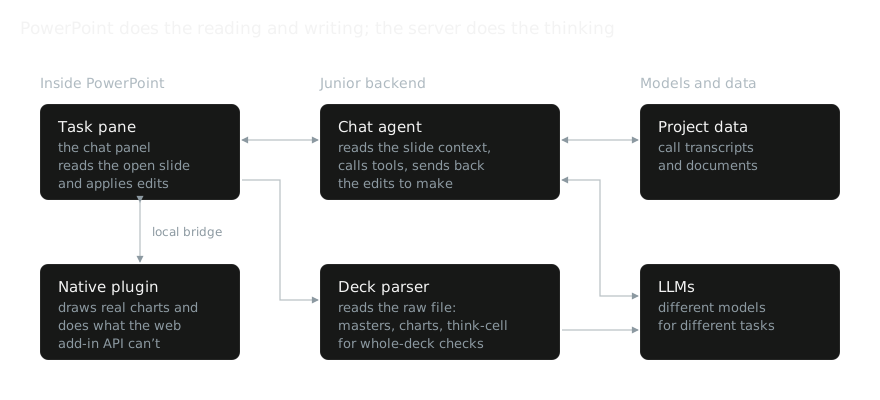
Inside PowerPoint, a task pane holds the chat panel. It reads the open slide through PowerPoint’s web add-in API and applies whatever edits come back. That API only goes so far, so a native plugin runs alongside it, drawing real charts from our own chart engine and handling what the web API can’t reach - the two talk over a local bridge.
On the server, a chat agent takes the slide context, searches the project’s calls and documents, and sends back the edits to make. For checks across a whole deck, the server also parses the raw file, which reaches what the live read of a slide misses.
What’s Actually Inside a Deck
Most of what makes a slide look the way it does is not stored on the slide; a title placeholder with no font set takes the layout’s font and the layout takes the master’s. Read only the slide and you get the words without the styling that gives them meaning.
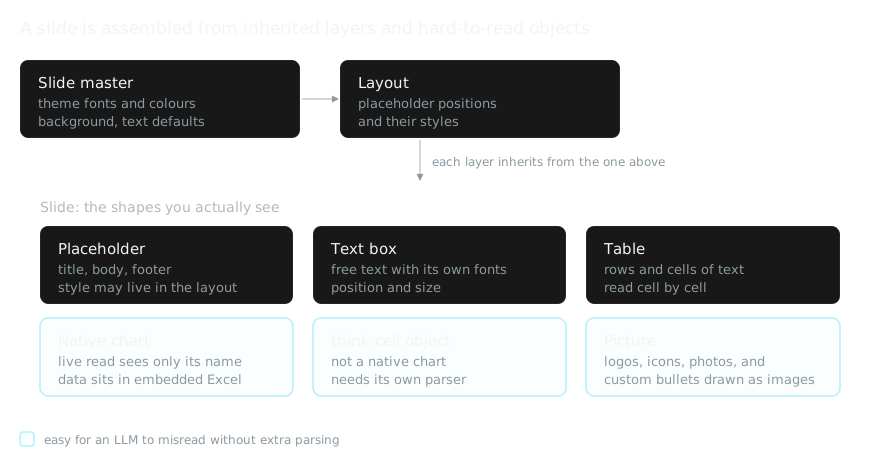
The richest objects are the hardest to read. A native chart’s numbers sit in an embedded Excel file, so the live read sees only the chart’s name. Think-cell charts are their own object type and needed their own parser. And some “bullet points” turn out to be small embedded images, so the LLM sees a picture where a person sees a list.
Screenshots vs. Shapes: Pulling Quotes
The fix for hallucinated sections was to stop asking the model to see the slide and let it read it instead. Given the shape list, it copies each section heading word for word from a real shape, so every section is tied to something actually on the slide.
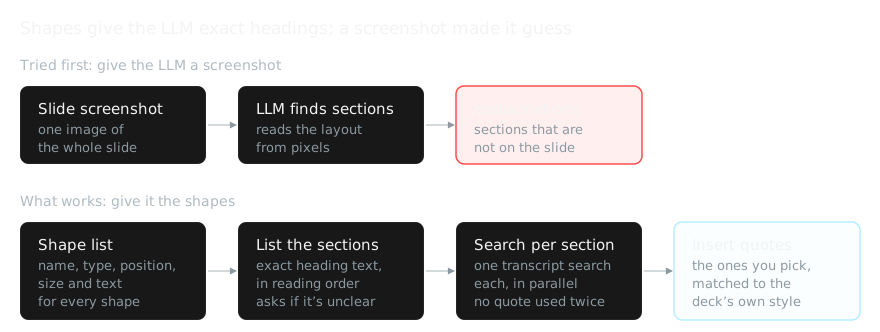
With a short description of every shape in context, the model names each section using the heading text that is really there, in reading order, and asks the user when the layout is unclear. Each section then gets its own search across the project’s call transcripts, and the quotes the user picks go onto the slide in the deck’s existing style.
Screenshots still have a role: to decide which shape a quote goes into, the model gets the screenshot and the shape list together.
Finding the Right Representation
Having an LLM work on a PowerPoint is interesting but hard, especially when the result has to be perfect in style and placement. It is exciting to move into a completely new space and test the limits of what an LLM can do with a deck. By its nature, though, there is no cut-and-dried right way to get the best result. It takes a lot of experimentation before you get a feel for which kinds of problem need which kind of solution.
For an engineer, the problem is essentially: how do I make the LLM understand this deck well enough to give me the output I need? There are a huge number of ways to scrape, modify or interpret a deck. For a given task, is a markdown version of the slide in context better, or a JSON of its shapes, or a screenshot?
LLMs are valuable here mostly for the speed of experimentation. With them you can build each of these pipelines quickly, run them side by side, and keep what wins.
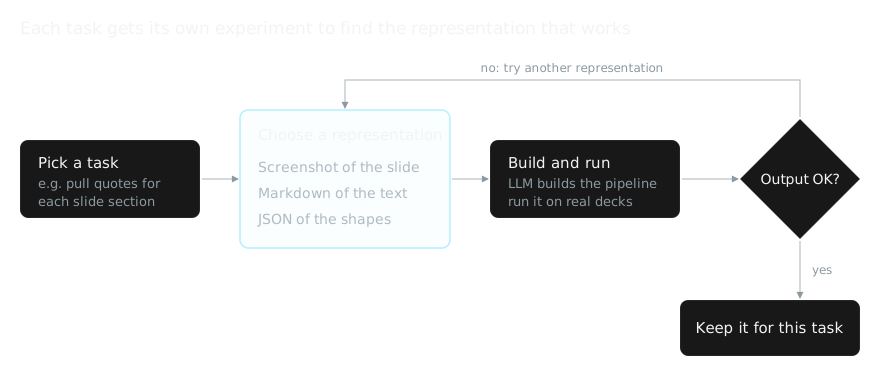
Because the LLM builds most of each pipeline, going round the loop again with a different representation is quick.
Where This Leaves Us
Each of these lessons, from what is really inside a deck to which representation suits which task, now feeds straight into how we build.
It has given us a solid foundation for both slide generation and slide QC, and a clear playbook for the next task we hand to an LLM: work out how it should see the deck first, then build.